
Product
From the POD in your inbox to a packet you can bill.
Four jobs that a small brokerage does by hand, done the same way every time, with a person approving everything that leaves the building.
The view
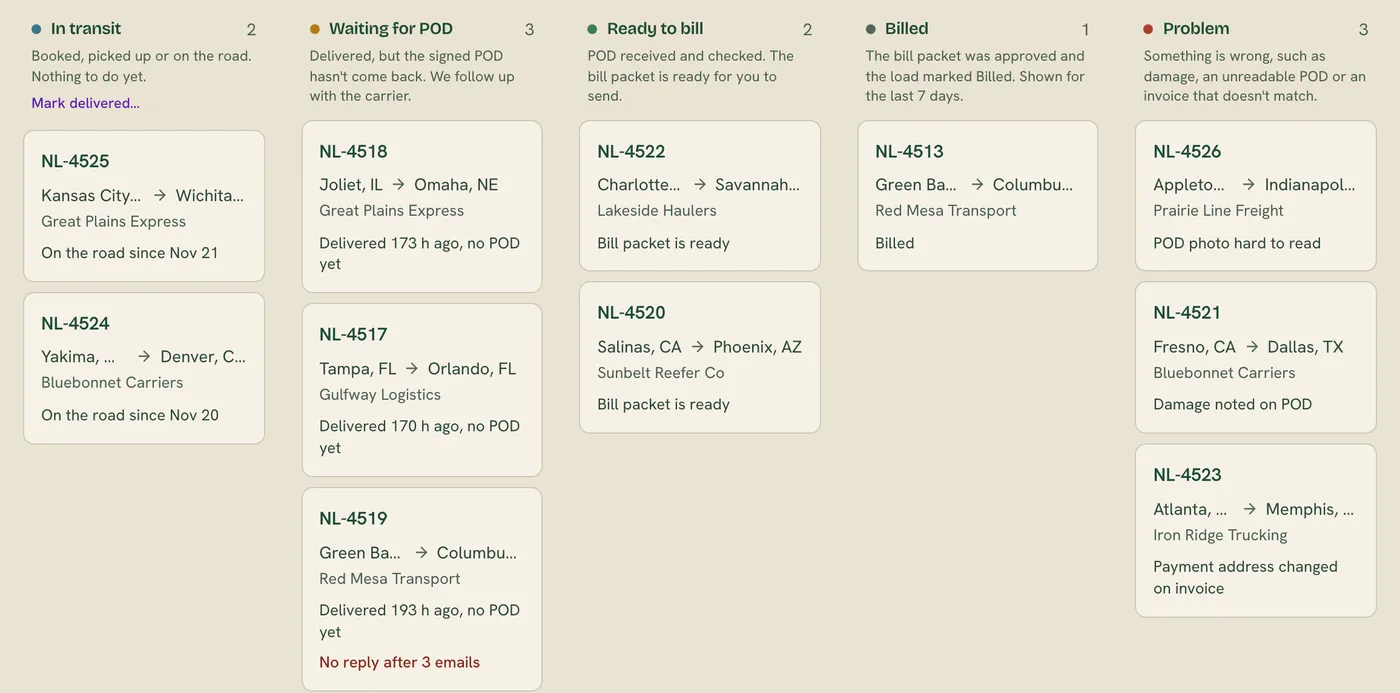
One board: waiting for POD, ready to bill.
Every delivered load sits in one of a few places. You see at a glance which ones are waiting on paper, which need a decision, and which are ready to bill.
The four jobs
Collects, checks, chases, bundles, holds.
1
POD collection
Forward your inbox. Each document is read, matched to a load and checked.
Read more2
POD chasing
Drafted chase emails for missing PODs. You approve each one.
Read more3
Bill-ready packet
Rate con, BOL/POD, lumper receipt and invoice gathered and checked for the load, ready for you to send.
Read more4
Remit-to hold
Carrier invoices whose remit-to changed are held, not paid.
Read more1. Collect
Carriers keep emailing the way they do today.
Forward your POD inbox. Each attachment is read and matched to a load. Documents that are not about a load are left alone, and the original is never changed.
- IMG_2231.jpg
dispatch@bluebonnet-carriers.testPOD matched to NL-4521 - POD_4522.pdf
ops@lakeside-haulers.testPOD matched to NL-4522 - lumper_receipt.jpg
dispatch@sunbelt-reefer.testLumper receipt, $185, NL-4520 - scan0007.jpg
driver.7702@prairieline.testNeeds review: load number unclear - Fuel_card_statement.pdf
noreply@fuelcard.testNot a load document. Left alone.
Originals are kept as they arrived. What was read sits beside each one.
2. Check
Every POD gets read like a checker would.
Signature, date, consignee, times and notes, each with how sure the reading was. A receiver note such as damage is surfaced, not buried in the photo.
- Load / BOLNL-4521 / BOL 7781298%
- SignedYes — J. Ortega95%
- Signature dateNov 19, 202697%
- ConsigneeHarvest DC — Dallas96%
- In / out time08:00 → 11:3088%
- Exceptions2 cases damaged84%
Receiver wrote “2 cs damaged” next to the signature.
3. Chase
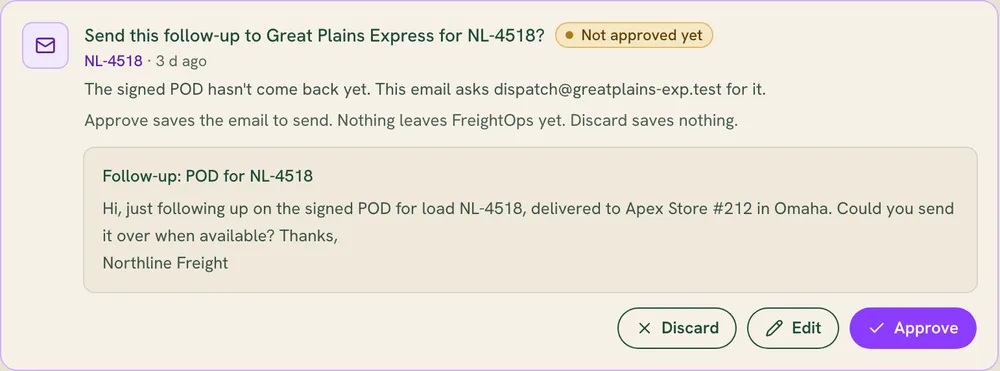
Nothing goes to a carrier until you click Send.
You see the draft, the recipient and the reason. Edit it, or skip it.
4. Hold
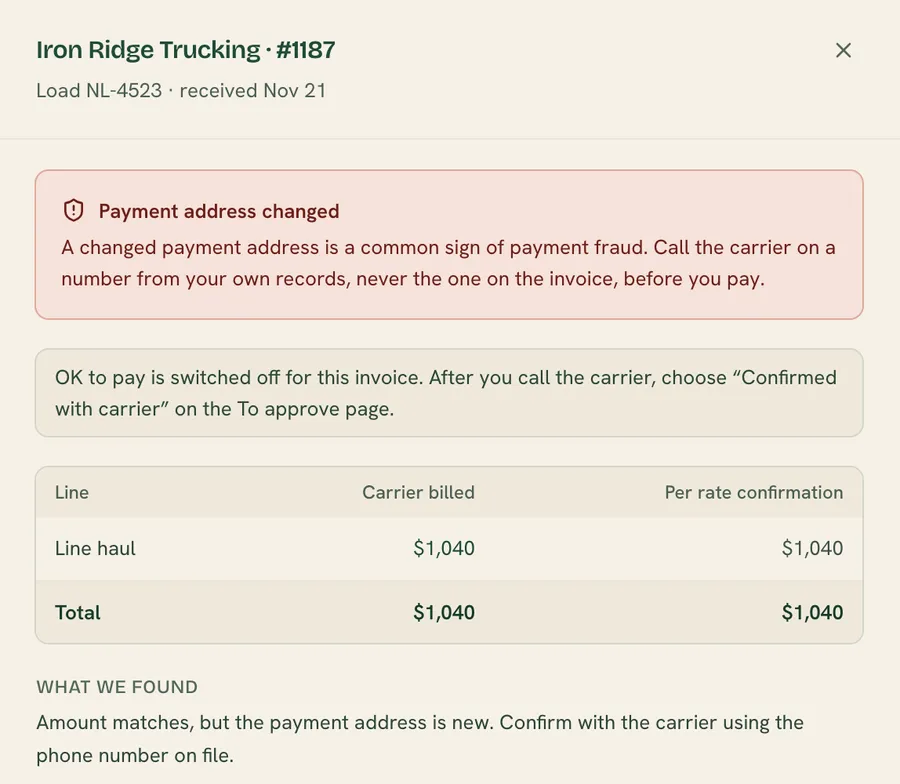
Remit-to changed? We hold the invoice.
We compare the remit-to with the address on file. If they differ, the invoice is held and flagged. You confirm through a contact you already have.
5. Bundle
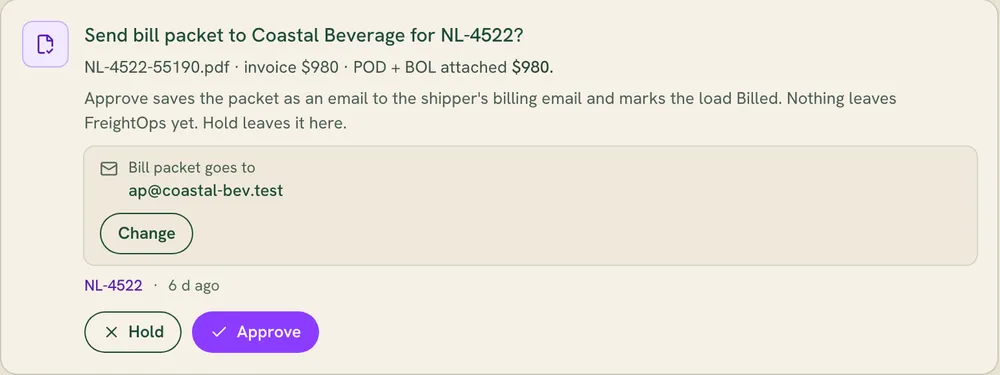
The packet waits for you.
When the paperwork is complete the packet is gathered. It is never sent without your approval.
Questions brokers ask.
What do I have to set up?
Forward your POD inbox to your workspace address and send a load list. That is the whole setup.
Does it replace our TMS?
No. It does not connect to a TMS today. You carry on working the way you do.
What happens when it is unsure?
It asks. A document it cannot match with confidence goes to a needs-review queue, and nothing is filed on a guess.
What has it been tested on?
Sample documents. We want three brokerages to run it on real ones, which is the design-partner period.

Bill the load. Skip the third email.
Pre-launch pricing. Free for 20 days. 3 spots. A human approves every email.